Quick-win SOP
01 / 07
5-minute check

Check if Google knows about your priority service

Step 1
02 / 07

Open your Business Profile

Sign in to the Google account connected to the clinic, then find the profile in Search or Maps.

Step 2
03 / 07

Check the searches people use

Open Performance and review the search terms that triggered your profile. Note one relevant service term.
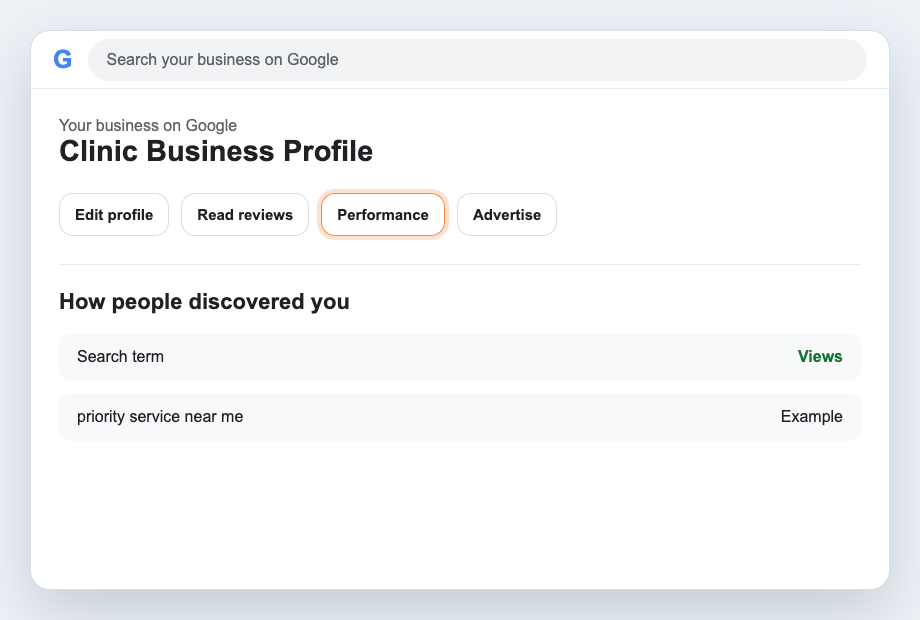
Illustrative Google Business Profile view with Performance highlighted
Illustrative view. Choose Performance from your Business Profile.
Step 3
04 / 07

Choose a service you actually offer

Use a genuine priority service. Do not add treatments, locations or claims that are not accurate.

Step 4
05 / 07

Open Edit services

Select an existing service or add a custom service when Google does not show the right option.
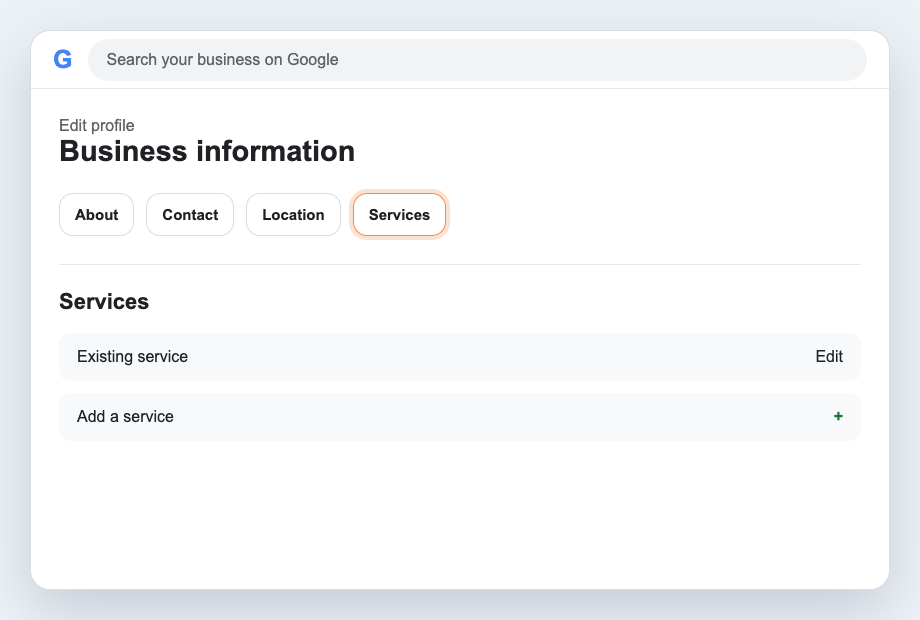
Illustrative Google Business Profile edit screen with Services highlighted
Illustrative view. Open Edit profile, then Services.
Step 5
06 / 07

Add a clear service description

Explain who the service is for and what it helps with. Keep it accurate, useful and easy to read.

Final check
07 / 07

Save it, then check the live profile

Google may review profile edits before they appear.

The goal is clarity, not keyword stuffing.